ALPINE — Parent & Adult Guide
The tablet sentence-builder + the progress dashboard, explained as recipes. Written for an adult who hasn't touched the system in three weeks.
Maintenance rule: any change that alters an adult-facing flow (adult gate, practice mode, training wheels, pack picker, sync, dashboard, pinning) must update this guide in the same change, including re-capturing any screenshot that changed.
Quick reference card
| I want to… | Do this |
|---|---|
| Let them play | Wake the tablet. The app is already there and locked in (pinned). That's it. |
| Try the app myself | Turn Practice mode ON first (recipe 3) — otherwise your taps count as their learning data. |
| Open the adult controls | Press and hold the small grey text line at the very bottom of the screen for 2 seconds (recipe 2). |
| Turn hints on/off (training wheels) | Adult controls → tap "Training wheels" (recipe 3b). |
| Move them to the next map | Adult controls → tap a different row under "Session pack" (recipe 4). |
| See their progress | On the PC: localhost:5173 in a browser → Sign in with Google (recipe 7). |
| Get data to the SLP | Dashboard → Export buttons → send the CSV files (recipe 8). |
| Unpin the tablet | Hold Back + Recents together, then enter the guardian lock-screen password (recipe 9). |
| Fix "sync failed" | Check ExpressVPN on the tablet first — a dead VPN tunnel blocks everything (recipe 10). |
1. What you're looking at
The system has two halves:
- The tablet app (their side): they build sentences by tapping picture tiles to describe a photo. It speaks, gently nudges on mistakes, and celebrates wins. Everything they do is recorded quietly in the background — nothing on their screen shows scores or data.
- The dashboard (your side): a web page on the PC where you and the SLP see their sessions, per-target progress, and download the data as CSV files.
The tablet is normally pinned — locked to the app so Home/Back can't leave it. They can't exit it, and neither can you without the guardian password (recipe 9).
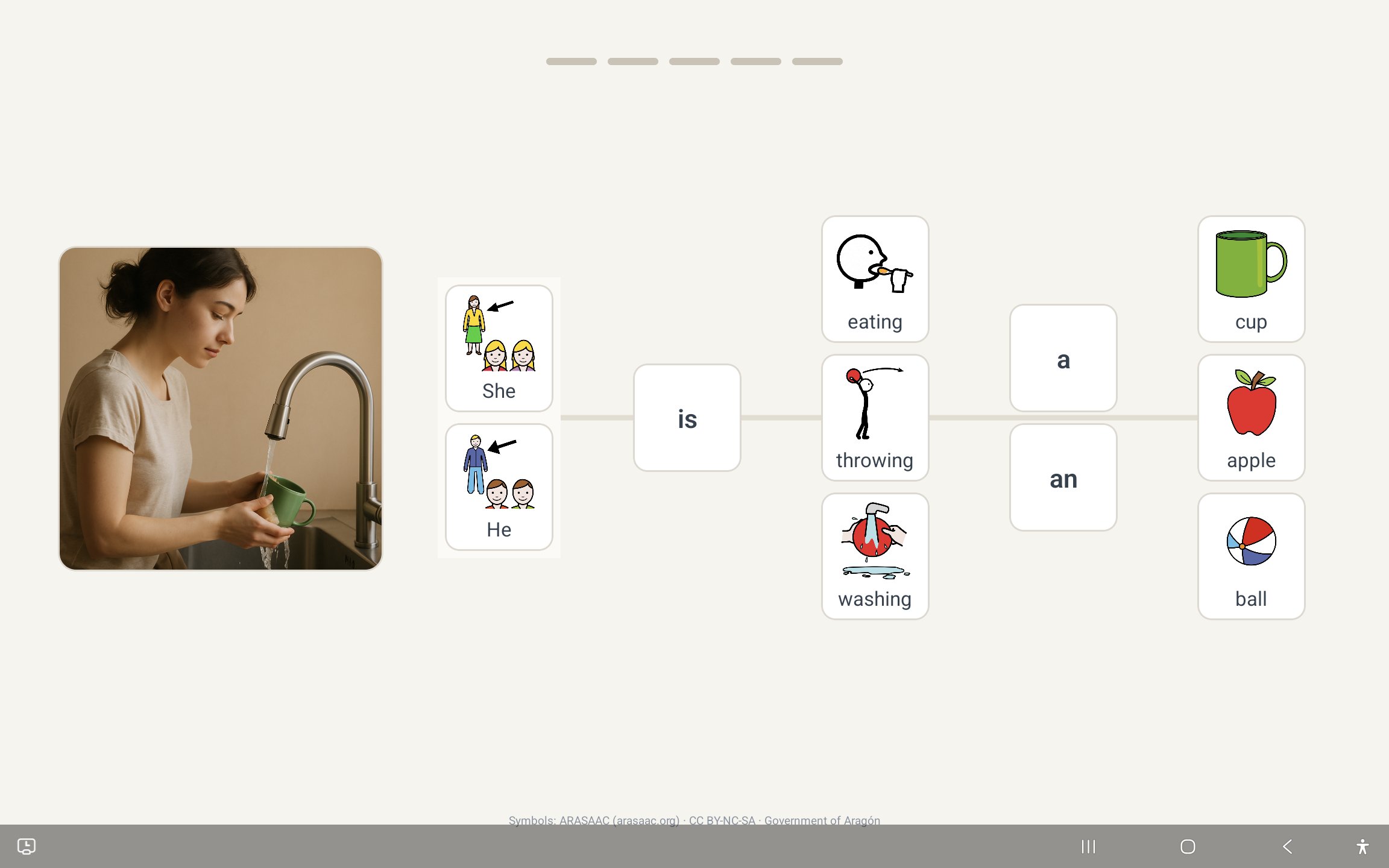 The learner's screen. The photo on the left is the prompt; they build "She is throwing a
ball" by tapping tiles. The grey text at the bottom ("Symbols: ARASAAC…") is also the hidden
adult gate — see recipe 2.
The learner's screen. The photo on the left is the prompt; they build "She is throwing a
ball" by tapping tiles. The grey text at the bottom ("Symbols: ARASAAC…") is also the hidden
adult gate — see recipe 2.
2. Opening the adult controls (the "adult gate")
There is no visible settings button — that's deliberate, so they never wander into it.
- Find the small grey attribution line at the bottom centre of the screen ("Symbols: ARASAAC (arasaac.org)…").
- Press and hold it for 2 full seconds (a deliberate, slow hold — a normal tap does nothing).
- The Adult settings sheet opens.
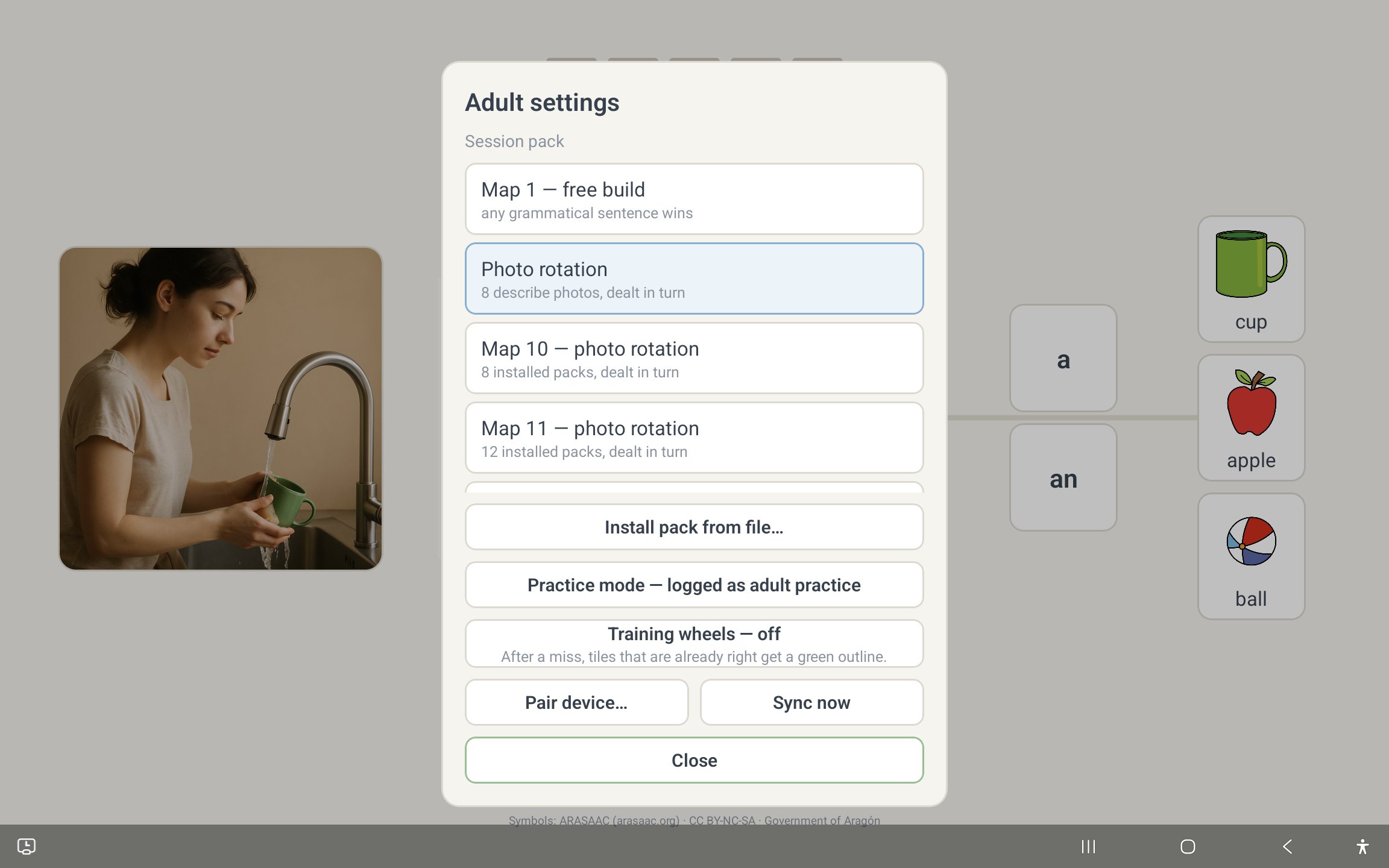 Everything an adult can do lives here: choose the session pack, install new packs, toggle
Practice mode, toggle Training wheels, pair the device, and sync.
Everything an adult can do lives here: choose the session pack, install new packs, toggle
Practice mode, toggle Training wheels, pair the device, and sync.
Tap Close to return to the learner's screen. The gate works even while the tablet is pinned.
3. Practice mode — ALWAYS before an adult touches the board
Why this matters: the app cannot tell whose fingers are tapping. Any build made without Practice mode ON is recorded as their learning data and pollutes their progress charts. (This has actually happened — 17 adult test builds once had to be surgically deleted from their records.)
Before you demo, test, or play:
- Open the adult gate (recipe 2).
- Tap "Practice mode — logged as adult practice". The row highlights.
- Tap Close. A small "Practice" badge now floats on the screen — that badge is your confirmation that your taps are tagged as adult practice.
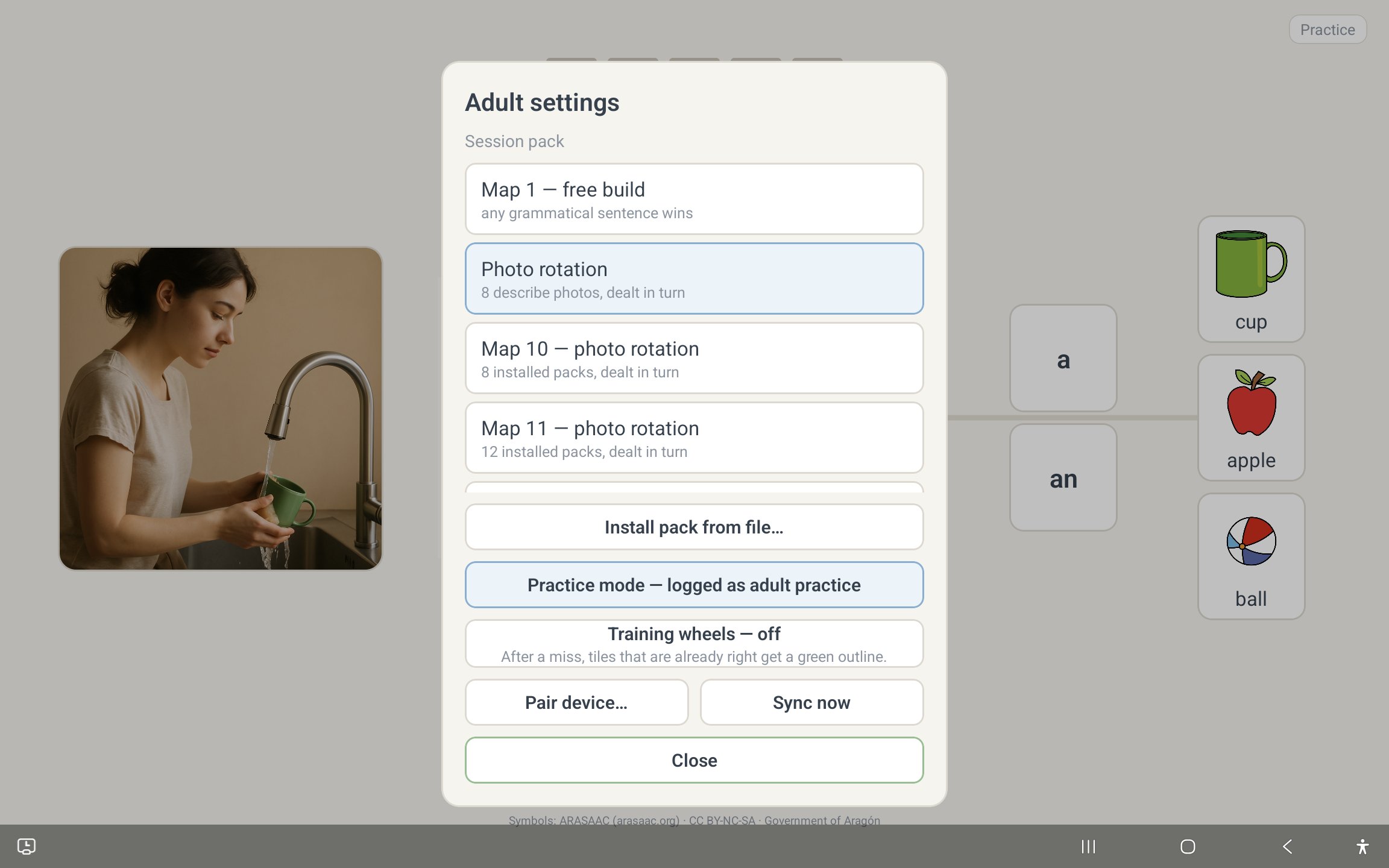 The toggle, switched on.
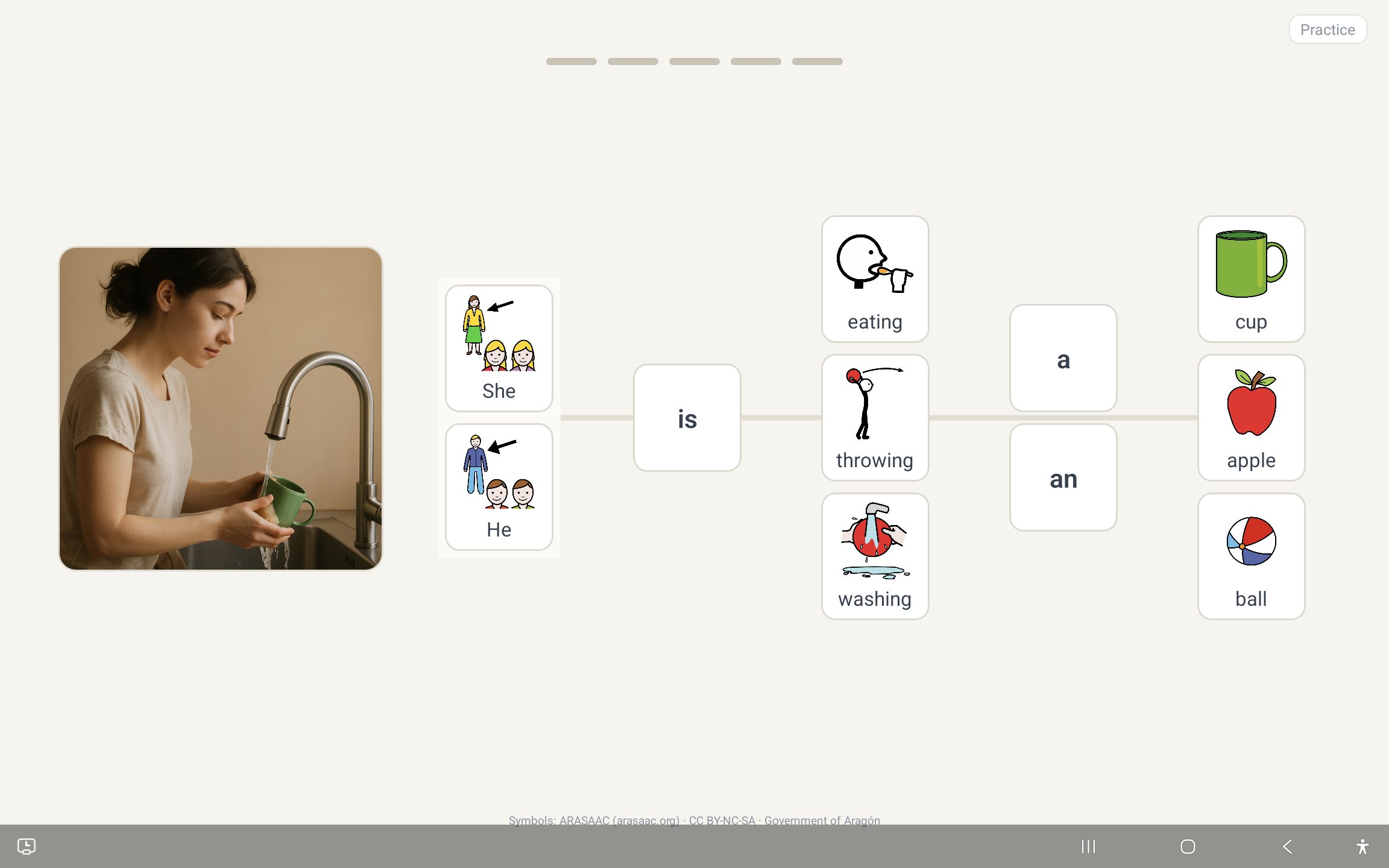 The badge on the builder screen. If you don't see it, your builds are being logged as theirs.
When you're done: open the gate again and tap the toggle off (the badge disappears). Practice mode also switches itself off after 30 minutes as a safety net, and a build in progress when the mode flips is discarded rather than mis-attributed.
Practice builds still sync and appear on the dashboard — under the separate Practice tab, excluded from the learner's metrics. They're useful as demos.
3b. Training wheels — green outlines after a miss (optional hint)
An optional support you can switch on when a map is new, and off as independence grows.
What it does: when a whole sentence has been built but it's wrong, the tiles that are already right get a calm green outline — a visual nudge that says "these are right; can you find which of the others needs to change?" Nothing extra is spoken, nothing animates, and it never advances or corrects anything by itself.
- Open the adult gate (recipe 2).
- Tap "Training wheels — off" to switch it on (the row shows on and highlights).
- Tap Close. The setting persists across restarts (unlike Practice mode) until an adult switches it off the same way.
Every build records whether training wheels were on, so the dashboard and the SLP can tell assisted wins from unassisted ones when judging readiness to advance (recipe 4).
Fading the support: the intended path is ON when a new map is introduced → OFF once they're winning without needing the outlines. One change at a time, decided by a human — ideally introduced with an adult sitting beside them, like any other change.
4. Moving them to the next map (or any other pack)
The app never advances on its own — an adult always makes the change. That's deliberate: one predictable change at a time, decided by a human.
- Open the adult gate (recipe 2).
- Under Session pack, tap the row you want:
- Map 1 — free build: any grammatical sentence wins (no photo prompt).
- Photo rotation: the built-in Map 1 photo pool (she/he + eating/throwing/washing + cup/apple/ball, 8 photos dealt in turn — never random, never twice in a row).
- Map N — photo rotation: an installed map's photo pool, dealt the same way.
- The sheet closes itself and the new pack is live immediately. The choice survives restarts.
When to advance: check the dashboard's evidence table first (recipe 7). The working reference is: a target is ready when they build it ~90% independently across 3 sittings, on at least 2 different days — but the SLP owns this criterion; when in doubt, ask the SLP. The gentlest first step up from Map 1 is Map 2 (identical sentence frame, new food words).
The full ladder is 15 maps (Map 2 food theme → Map 3 is/are → Map 4 possessives → … → Map 15
feelings). Details live in docs/sentence-builder/SCENARIO_LIBRARY.md.
5. Installing a new map's packs
New maps arrive as smp-*.zip files. Two ways to install:
The easy way (from the PC, tablet on the dock):
venv/Scripts/python.exe scripts/reset_tablet.py install map2
This pushes nothing new — the zips are already in the tablet's Downloads — it drives the
installer for every map2/describe2 pack, then re-pins. Swap map2 for any map number.
(The zips themselves are made with node apps/sentence-builder/scripts/export-pack.ts
<packId> and pushed to the tablet's Downloads folder.)
The on-device way: the system file picker cannot open while pinned, so first unpin (recipe 9), then adult gate → Install pack from file… → pick the zip from Downloads → watch the status line confirm "Installed: …". Re-pin when done.
Installed packs appear as new rows in the Session pack list. Installing is safe to repeat — reinstalling the same pack changes nothing.
6. Syncing the learner's data to the cloud
Builds are stored on the tablet instantly (works fully offline) and mirrored to the cloud so the dashboard can see them.
- Sync happens automatically when the app launches.
- To force it: adult gate → Sync now. The status line reports
Synced N · already mirrored N · failed N · remaining N. - Pair device… is a one-time setup step (already done). You'd only use it again after a
full tablet wipe — it needs the pairing file created by
scripts/pair_device.pyon the PC.
If sync fails, see recipe 10 — it's almost always the VPN.
7. Reading the dashboard
The dashboard runs on the PC (it is not on the public internet).
- If it isn't already running, in a terminal at the project folder:
pnpm --filter @alpine/dashboard dev - Open http://localhost:5173 in a browser.
- Click Sign in with Google and use the authorized account (only the allow-listed account can read the data — anyone else is refused).
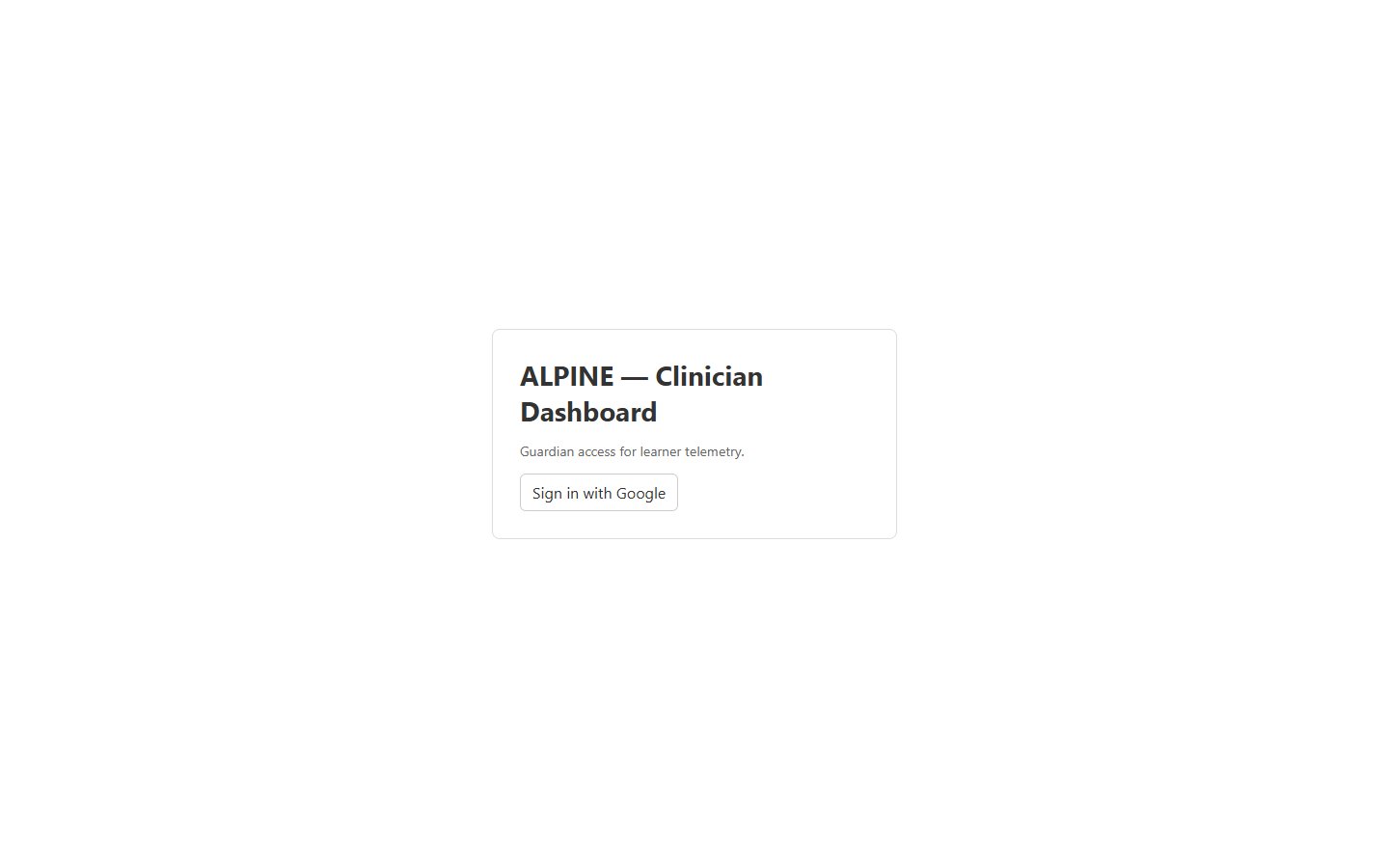
Two tabs:
- Her progress — the learner's real sessions only: session log, per-map view, per-target evidence table and support-shift chart. (The tab label is the dashboard's own wording.)
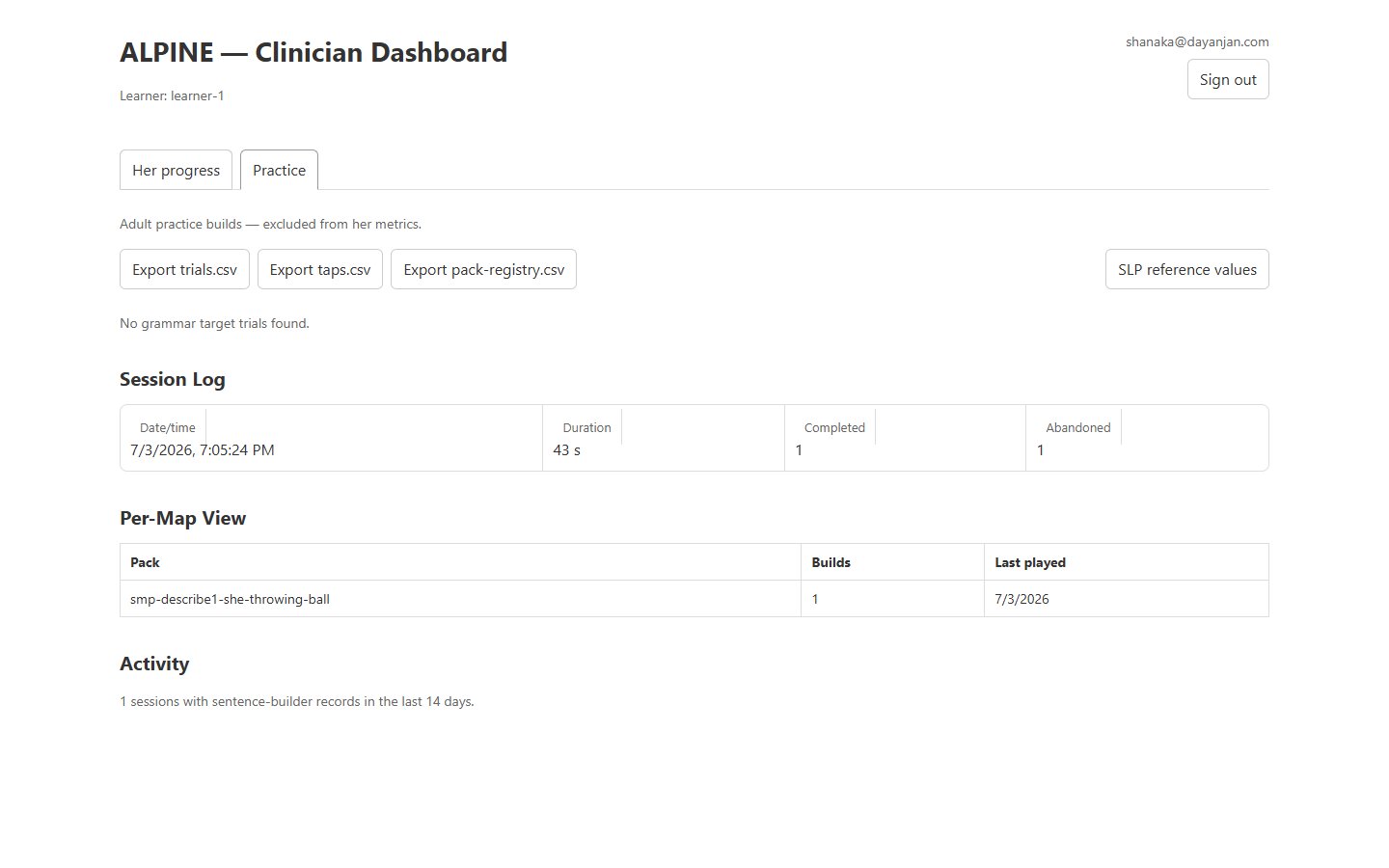
- Practice — adult practice builds only (recipe 3), clearly excluded from the learner's metrics.
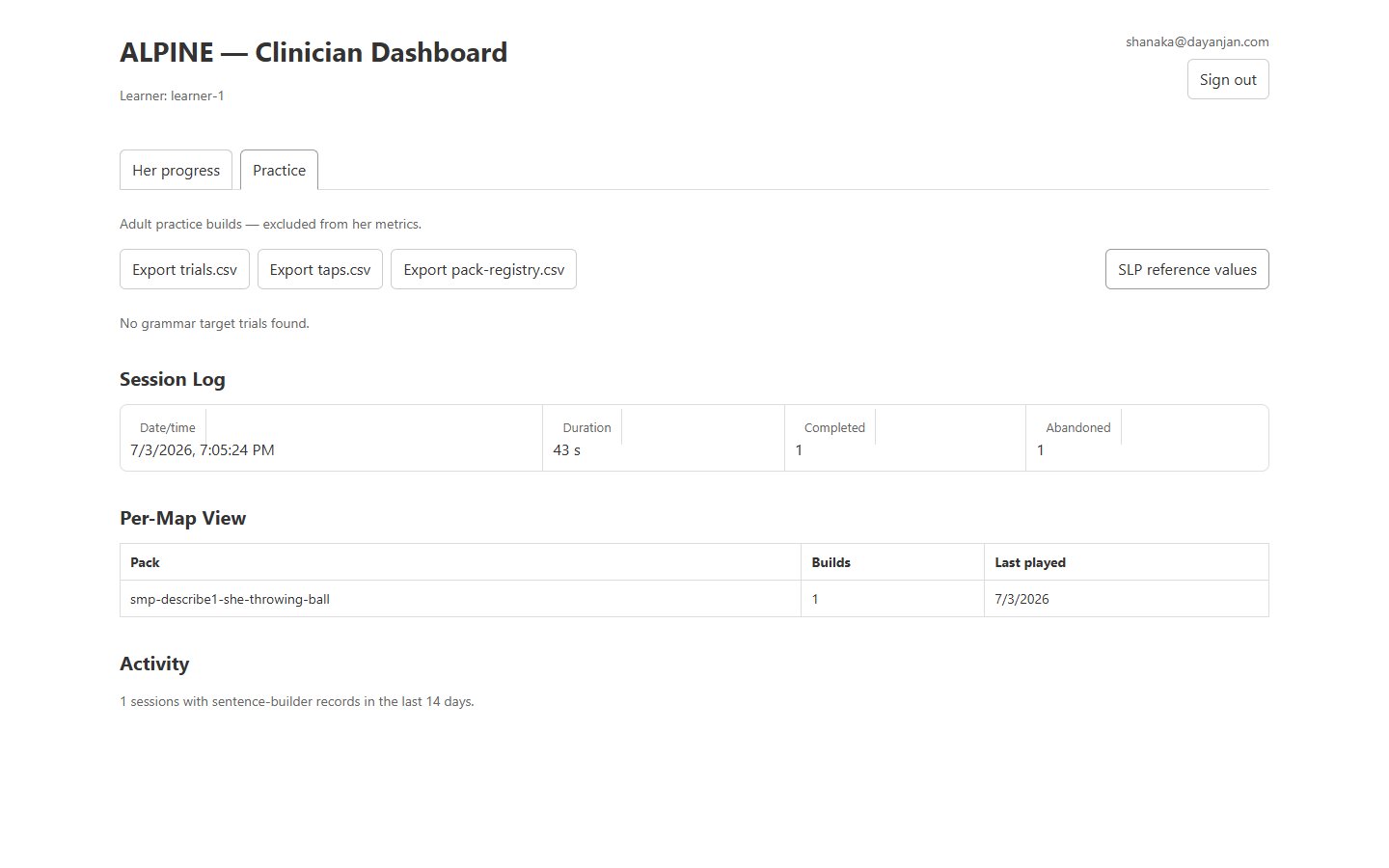 What a synced session looks like: the session log (duration, completed, abandoned), per-map
view, and the export buttons. The "Her progress" tab has the same layout plus the per-target
evidence sections.
What a synced session looks like: the session log (duration, completed, abandoned), per-map
view, and the export buttons. The "Her progress" tab has the same layout plus the per-target
evidence sections.
How to read the evidence (the 30-second version): progress is measured as the support-shift — the share of builds they complete with no help rising over time — and speed past that ceiling, never as an accuracy score. "Insufficient data" labels are honest, not broken: the views refuse to imply evidence from too few builds. The dashboard reports; the SLP judges.
8. Getting data to the SLP
- Dashboard → either tab → the Export buttons at the top:
- trials.csv — one row per build (support level, timings, conditions).
- taps.csv — every tap, long format (for deep analysis).
- pack-registry.csv — what each pack contains (needed to interpret the other two).
- The SLP reference values button shows the criterion defaults the SLP may want to adjust.
- Send all three CSVs — they are self-describing and carry version stamps.
9. Pinning and unpinning the tablet
Pinned = locked to the app: Home and Back do nothing, notifications can't intrude, the learner cannot leave (and nothing can interrupt them). The tablet is normally handed over pinned.
- Unpin on the tablet: hold Back + Recents together (the ⟨ and ||| buttons), then enter the guardian lock-screen password. The learner can't do this.
- Unpin from the PC:
venv/Scripts/python.exe scripts/reset_tablet.py unpin - Re-pin from the PC:
venv/Scripts/python.exe scripts/reset_tablet.py pin - Re-pin by hand: Recents (|||) → tap the app's icon at the top of its card → Pin this app → OK.
The invariant: always hand the tablet back pinned. The install script re-pins automatically; if you unpinned by hand, re-pin by hand.
10. When something is wrong
| Symptom | First move |
|---|---|
| Sync fails / dashboard shows nothing new | Check ExpressVPN on the tablet — a dead VPN tunnel silently blocks all the app's internet. Keep it force-stopped/disconnected, then Sync now. |
| Voice sounds different | An Android TTS update replaced the pinned voice. The app auto-falls back at launch; a restart of the app usually restores the right one. |
| App won't launch / black screen | From the PC: scripts/reset_tablet.py unpin (force-stops and relaunches), then re-pin. |
| "Practice" badge won't go away | Adult gate → tap the Practice toggle off. It also auto-expires after 30 min. |
| "Hear it" isn't responding | It goes quiet while a sentence is being spoken and for a moment after (that's deliberate — it prevents rapid-tap sound loops). Wait a second or two and tap once. |
| Adult gate won't open | You're holding too briefly or off-target: hold the grey ARASAAC line itself, a full 2 seconds. |
| Dashboard says signed in but is empty | The data may genuinely be empty (e.g. after a wipe) — check the Practice tab; if that's empty too, the sync hasn't run: recipe 6. |
| I built sentences without Practice mode ON | Stop. Tell the developer/agent which minutes were yours — the affected session can be deleted from the cloud precisely, but only if it's identified before the learner's next session mixes in. |
Wiping test data (careful): scripts/reset_tablet.py (no arguments) does a full
reset — wipes the tablet journal and every installed pack, then reinstalls and re-pins.
Use it only before a fresh counted session, never to fix a small mistake. Deleting a single
bad session from the cloud is surgical and preferred — ask the agent.